How to install Claude Code on Windows
Claude Code install on Windows step by step: PowerShell, CMD, WinGet or npm, checking the version, first launch, Base URL setup and common errors.
· 4 min read
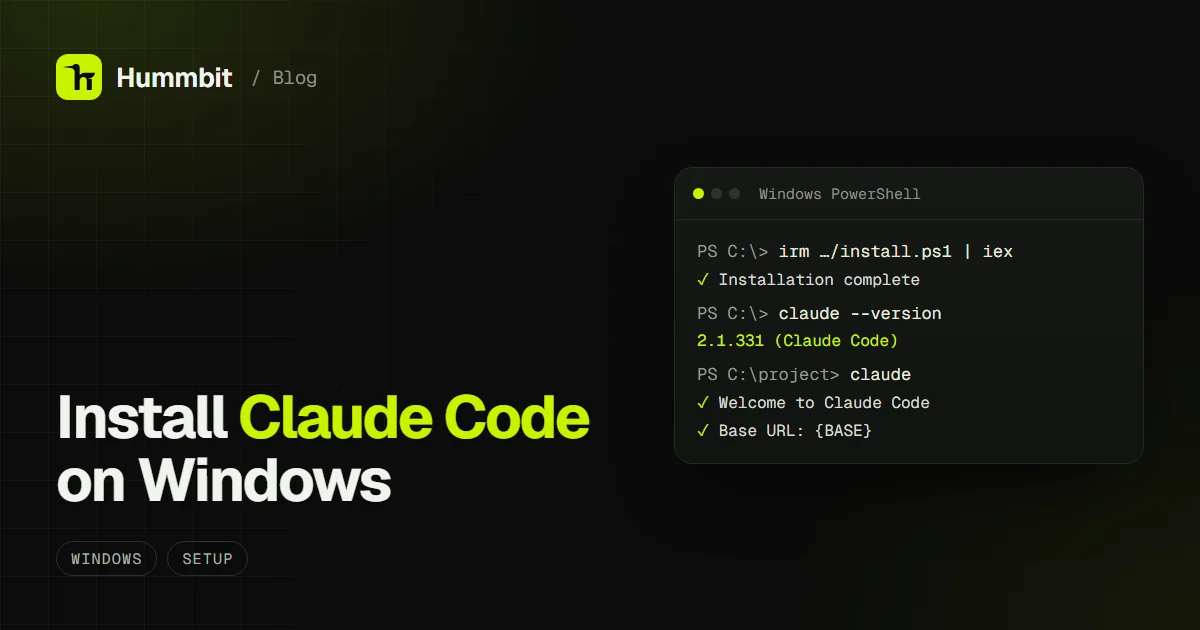
A Claude Code install on Windows takes a couple of minutes and one command. There is no installer to download by hand: PowerShell fetches the program, puts it in your user folder and keeps it updated. This guide covers what you need first, which install method to pick, how to check that it worked and how to fix the errors people hit most often.
Prefer screenshots? The same steps are on the Claude Code setup page. New to the tool? Start with what Claude Code is and how to use it.
What you need before you start
Claude Code runs on almost any work machine. The requirements are short:
- Windows 10 version 1809 or later, or Windows Server 2019 and later.
- 4 GB of RAM or more, an x64 or ARM64 processor.
- An internet connection.
- PowerShell or CMD. No administrator rights are needed.
Git for Windows is recommended but not required. With it, Claude Code uses Git Bash to run commands; without it, it falls back to PowerShell. Both work, but Git makes commits from inside a session much easier.
Install Claude Code with PowerShell
This is the main method and the one most people should use. The program lands in your user folder and updates itself in the background.
- Open Start, type PowerShell and open a normal window. Do not run it as administrator.
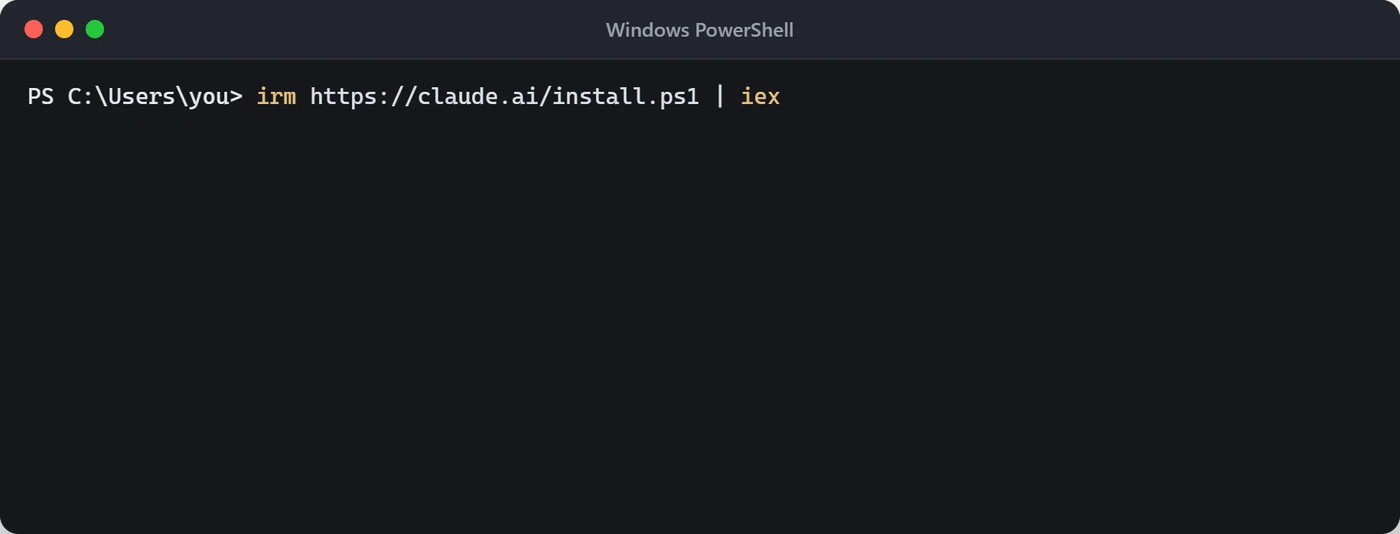
- Paste the install command from the setup page. It starts with
irmand ends with| iex. - Press Enter and wait. The installer shows no progress bar, so a quiet window for a minute or two is normal.
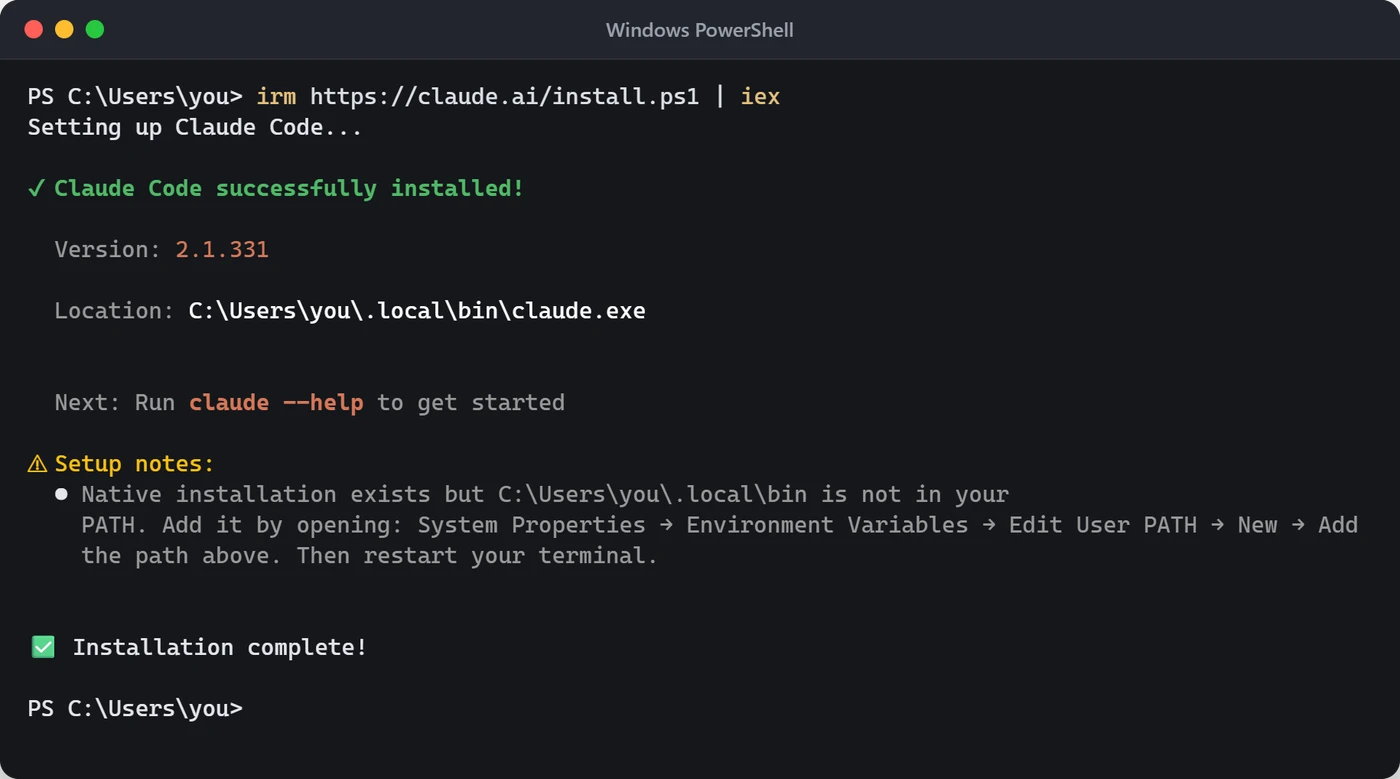
When it finishes, you see the version and the path to claude.exe. It is usually the .local\bin folder inside your user profile.
When Windows cannot find claude
Windows only looks for programs in the folders listed in PATH. Sometimes the installer cannot add its folder there, and the next command fails with "claude is not recognized". One PowerShell command fixes it:
$currentPath = [Environment]::GetEnvironmentVariable('PATH', 'User'); [Environment]::SetEnvironmentVariable('PATH', "$currentPath;$env:USERPROFILE\.local\bin", 'User')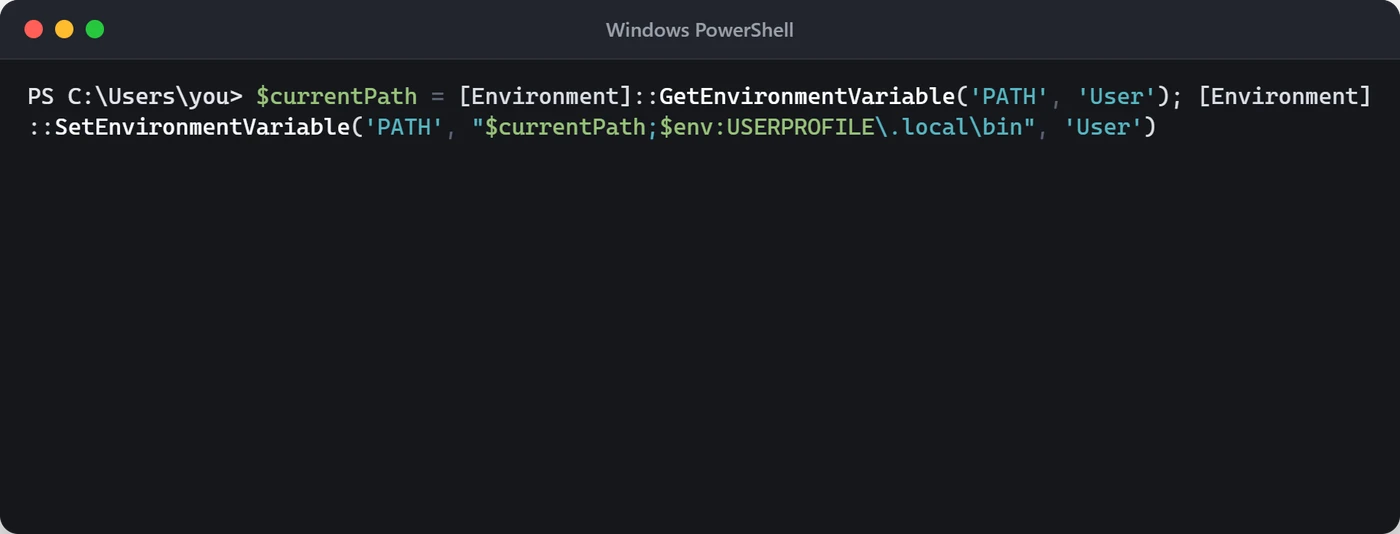
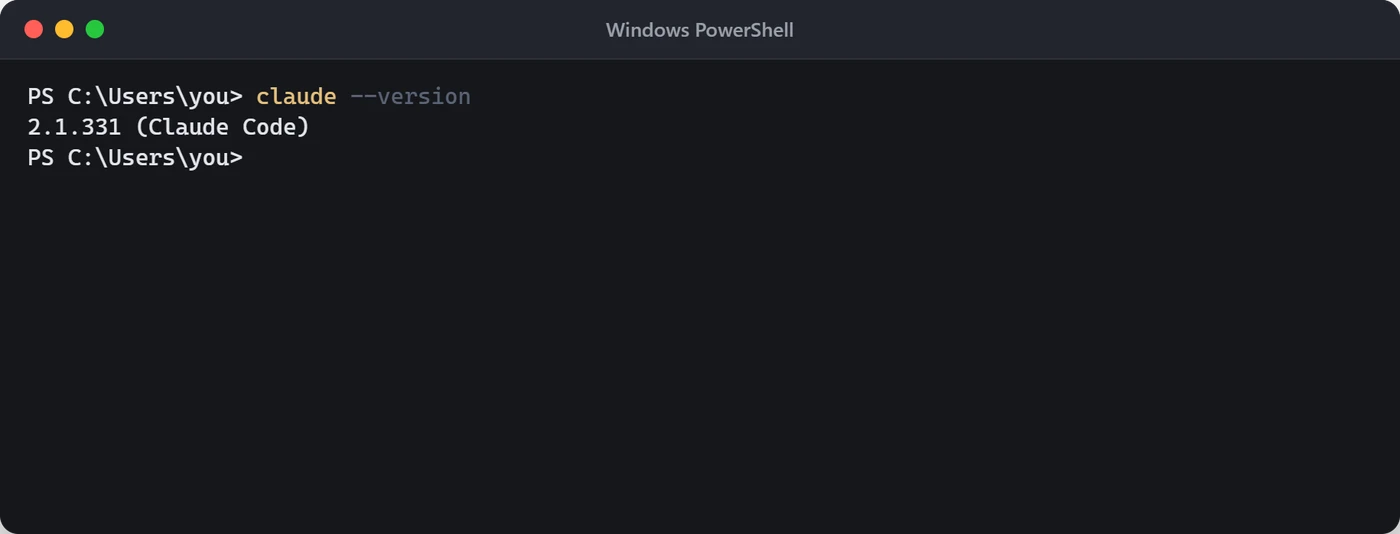
Close the window and open a new one, because an old terminal does not see PATH changes. Then check the install with claude --version.
Other ways to install
If PowerShell is not an option, there are three more. All of them install the same program.
| Method | Where to run it | Updates |
|---|---|---|
| Install script | PowerShell | automatic, in the background |
| Install script for CMD | Command Prompt | automatic, in the background |
| WinGet | PowerShell or CMD | manual |
| npm | any terminal, needs Node.js 22+ | manual |
The WinGet and npm commands:
winget install Anthropic.ClaudeCode
npm install -g @anthropic-ai/claude-codeFirst launch and connecting
Go to your project folder and start the program with claude. To run Claude Code through Hummbit, it needs two values: an address and a key. You get both in your dashboard after you sign up, and the dashboard has a ready setup command for Windows with your key already filled in.
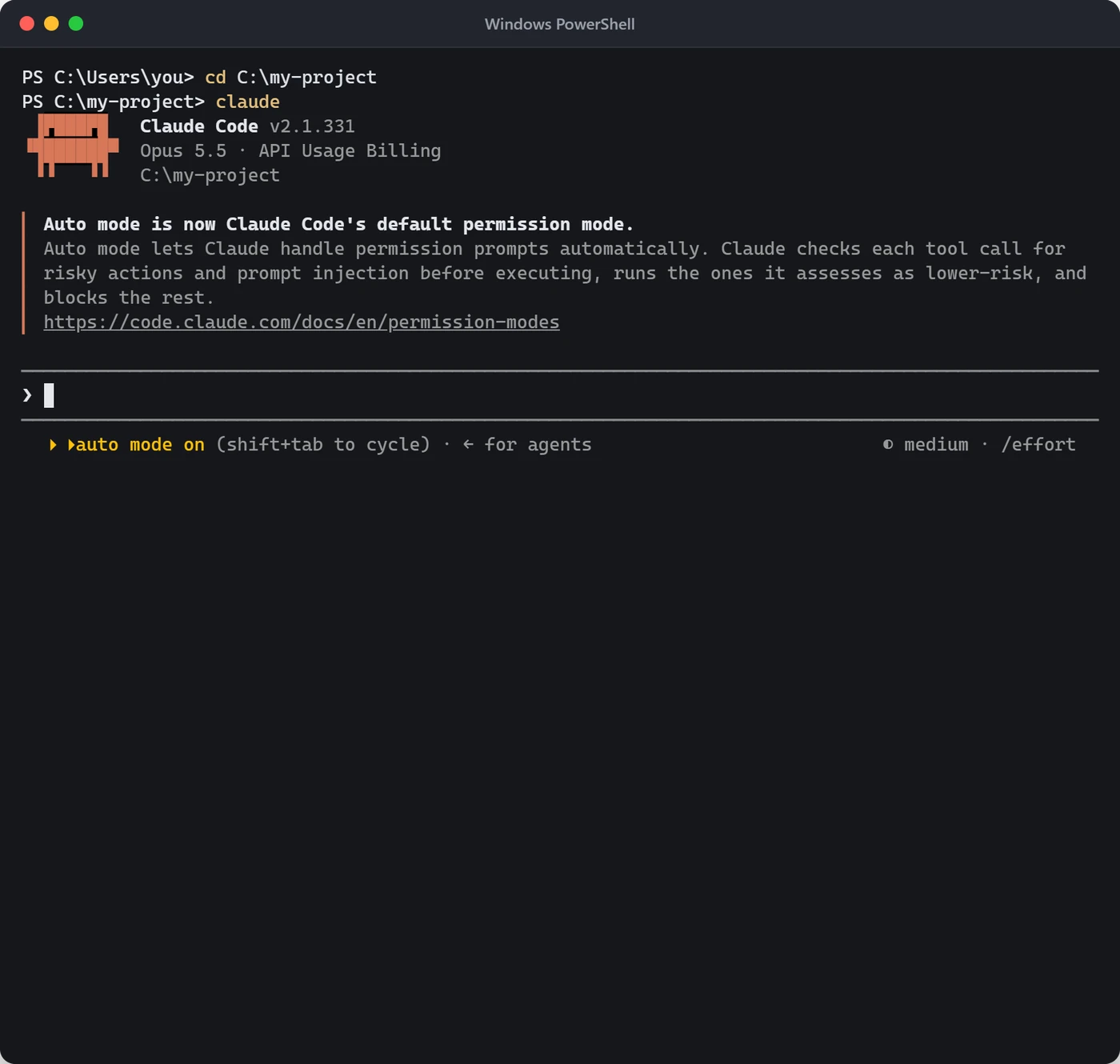
What that command changes, and how to set the address by hand in settings.json, is covered in Claude Code base URL and API key setup. The full walkthrough from zero to the first answer is in the getting started guide.
Common errors and how to fix them
"The token '&&' is not a valid statement separator". You pasted the CMD command into PowerShell. Use the PowerShell version or open Command Prompt.
"'irm' is not recognized as an internal or external command". The opposite case: the PowerShell command ran in CMD. Open PowerShell and try again.
claude is not recognized after the install. The .local\bin folder is missing from PATH, or the terminal was opened before the install. Run the PATH command above and open a new window.
Claude Code asks you to log in. The address and key never reached the program. Check settings.json and restart the terminal.
Something behaves oddly. Run claude doctor. It checks the install and your settings without starting a session and tells you what to fix.
FAQ
Where does Claude Code keep its files on Windows?
The program itself is %USERPROFILE%\.local\bin\claude.exe. Settings live in the .claude folder in your user profile, and the main file there is settings.json.
How do I update Claude Code?
The install script version updates itself in the background. To update right away, run claude update. WinGet and npm installs are updated by hand.
Is there a Claude Code desktop app?
Yes. The Claude Desktop app has a Code tab that runs the same engine. See the Claude Desktop setup guide to connect it.
Can I install Claude Code in WSL?
Yes, WSL 2 is supported. For most work the native Windows install is simpler, though: fewer layers, and no guessing which system your files live in.
More apps that work with the same key are listed on the setup page.