What is Claude Code and how to use it
Claude Code in plain words: how it differs from a chat, what it can do, where it runs (terminal, VS Code, desktop), basic commands and a first session.
· 5 min read
What is Claude Code? It is Claude working directly inside your project folder. Instead of only answering in text, it reads files, edits code, runs commands and checks the result itself. This guide covers how Claude Code differs from a regular chat, where you can use it and which commands to learn first.
If you have not installed it yet, start with how to install Claude Code on Windows and come back here.
How Claude Code differs from a chat
In a regular chat you copy a piece of code, paste it into the window, read the answer and move the changes back by hand. The model only sees what you showed it. Claude Code works differently: it is an agent that opens the files it needs and makes the changes itself.
| What you compare | Chat assistant | Claude Code |
|---|---|---|
| What it sees | only the text you paste | the whole project folder |
| Who edits files | you, by hand | Claude, after you allow it |
| Running commands and tests | no | yes, in your terminal |
| Project memory | one conversation | a CLAUDE.md file with project rules |
| Where it runs | browser | terminal, editor, desktop app, browser |
The key difference is that Claude Code finishes the job. It can find a bug, fix three files, run the tests and, if they fail, fix the code again.
What Claude Code can do
You give it tasks in plain language. These are the most common uses:
- Understand unfamiliar code. "Explain how this project is structured and where orders are handled."
- Build a new feature. Claude decides which files to create and what to change in the existing ones.
- Find and fix bugs. Paste the error message and it traces the cause in the code.
- Run and repair tests. It reads the command output and keeps fixing until the tests pass.
- Work with Git. Review changes, write a clear commit message, create a branch.
- Connect outside tools. Through MCP, Claude Code can reach databases, issue trackers and other services.
Where Claude Code runs: CLI, VS Code and desktop
You can start Claude Code in several places. The same engine runs underneath all of them, and they share settings.
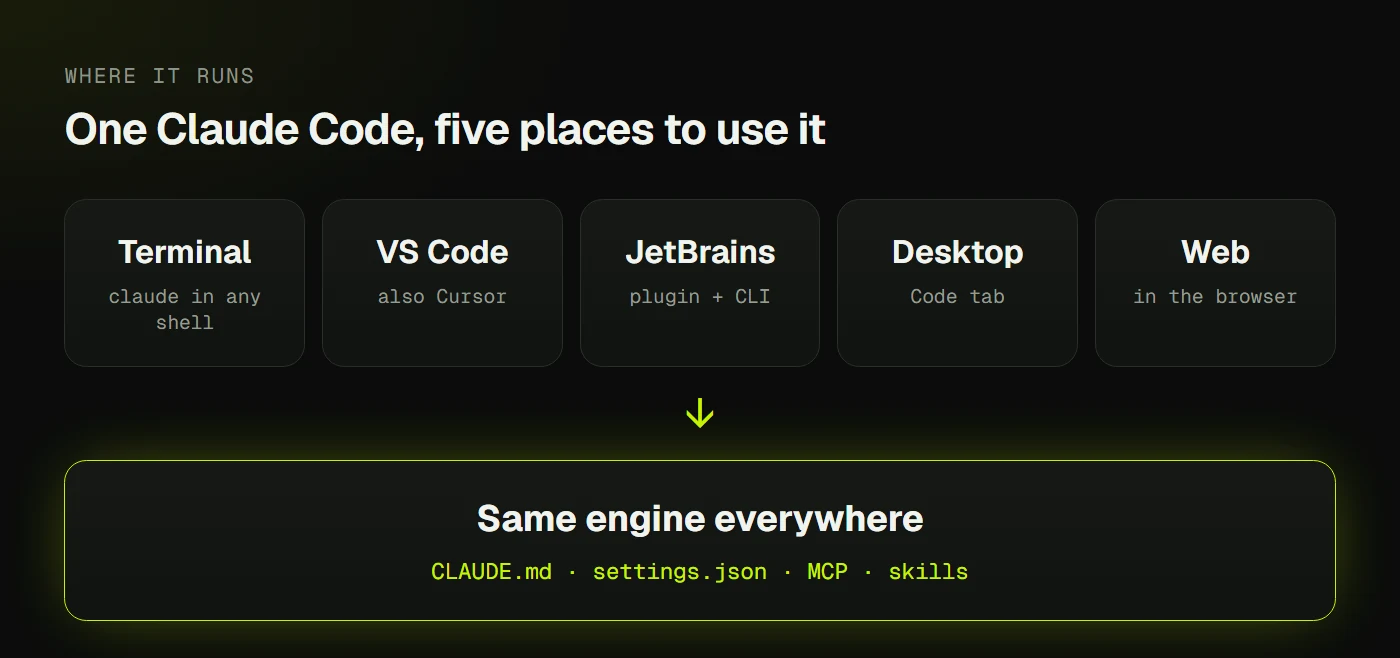
Terminal (CLI). The main option: the claude command in PowerShell, CMD or any other shell. Every feature and command is available here.
VS Code and Cursor. The extension opens Claude Code in the editor sidebar. Edits show up right in your code, so they are easy to compare with the original.
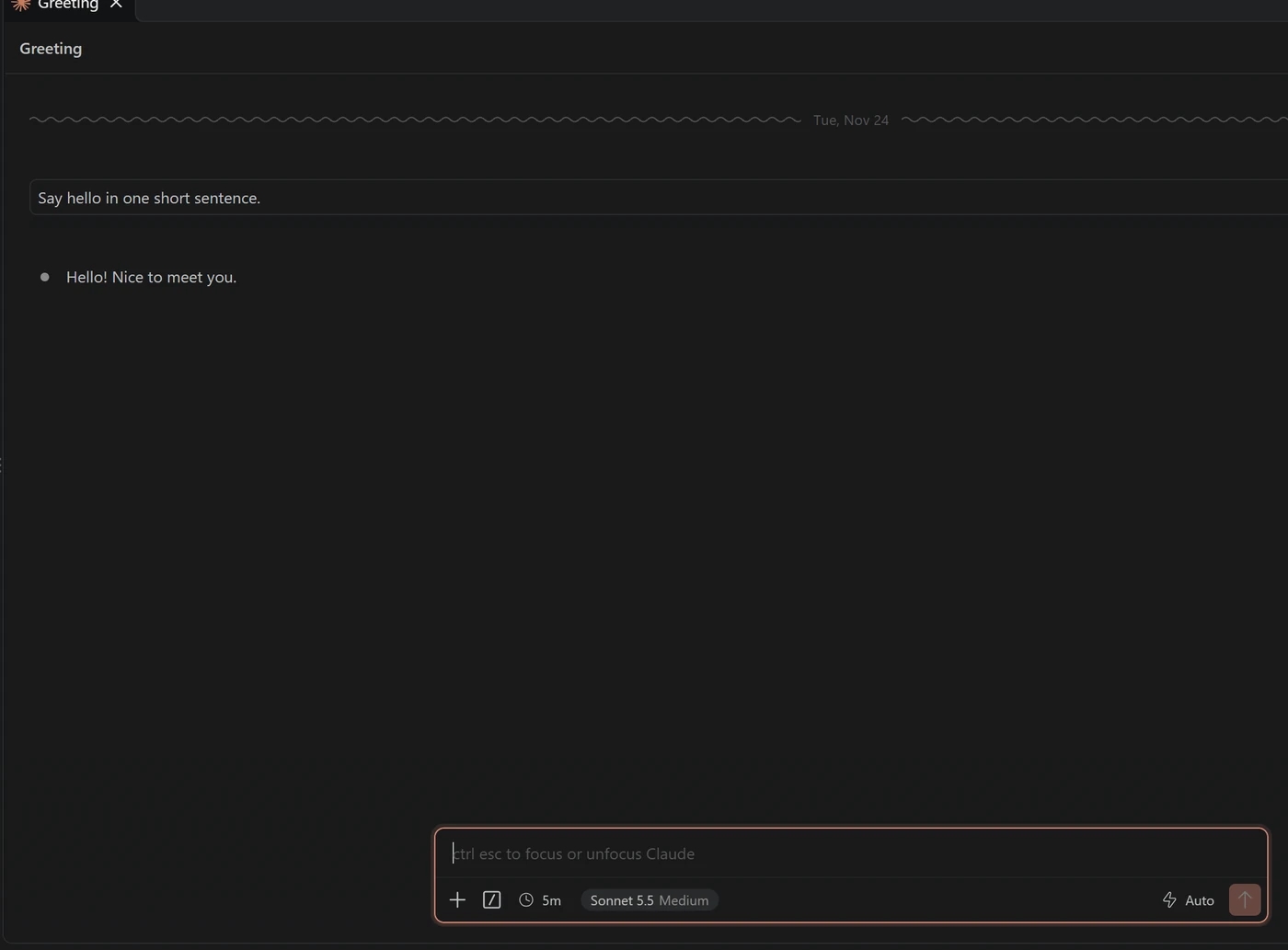
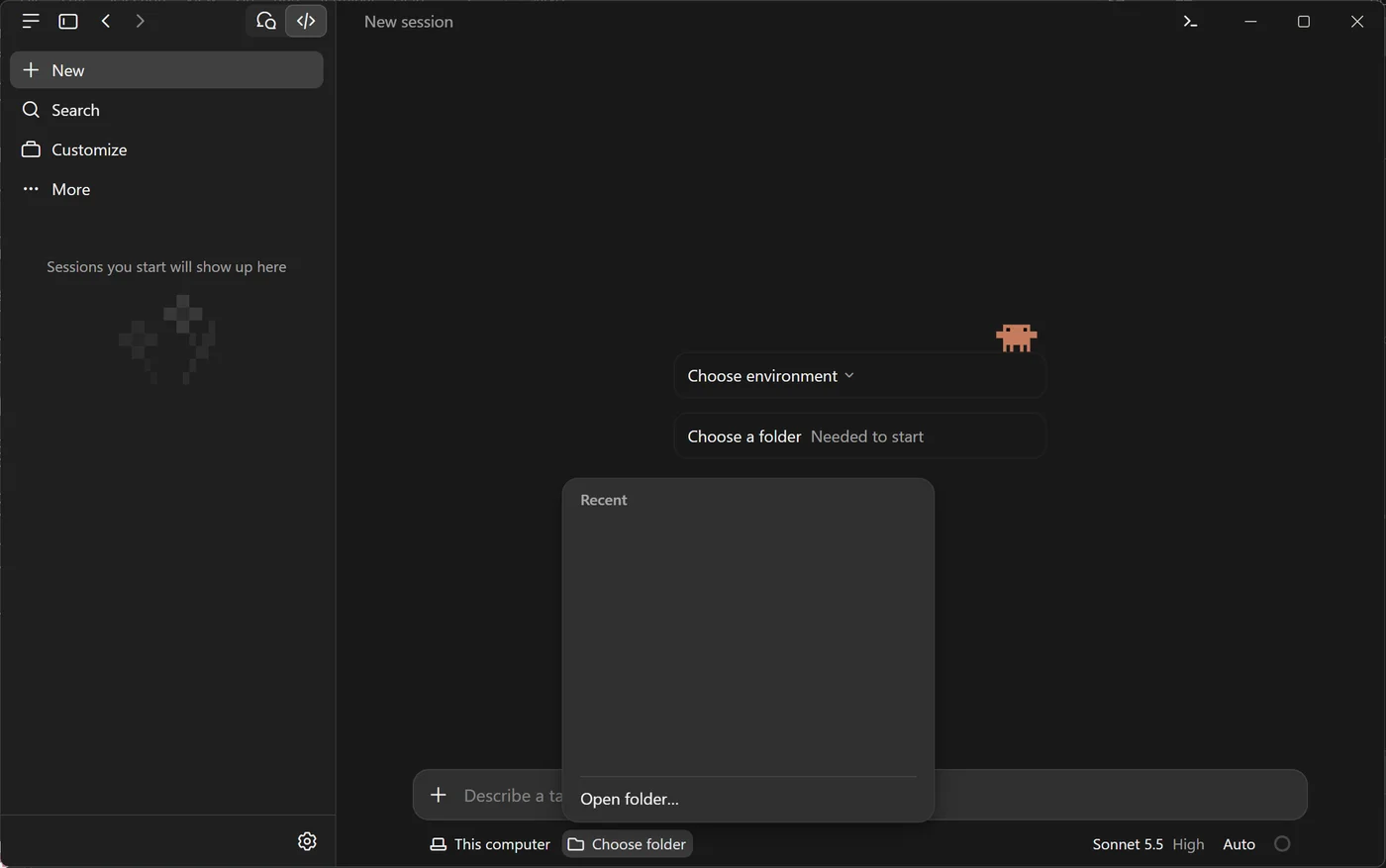
Desktop app. Claude Desktop has a Code tab. You pick a project folder, describe the task, and Claude works with the files just like in the terminal.
There is also a JetBrains plugin and a browser version. To use Hummbit, the terminal or the desktop app are the easiest: see the Claude Code and Claude Desktop setup guides.
Basic Claude Code commands
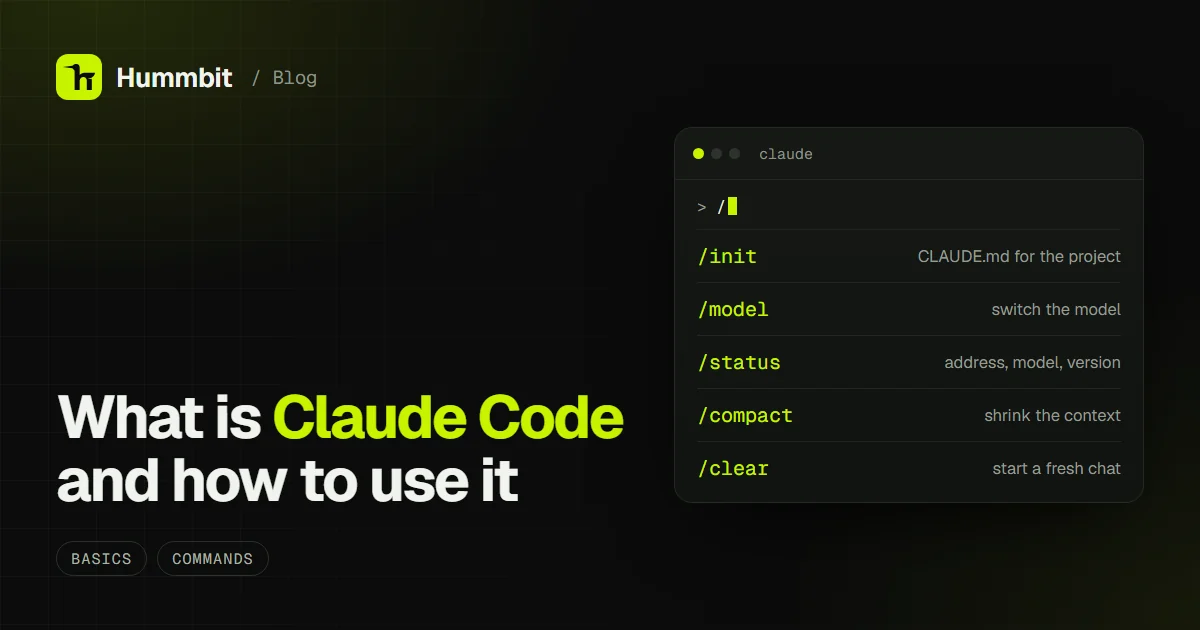
Inside a session, commands start with a slash. /help shows the full list, but these are enough to begin with:
| Command | What it does |
|---|---|
claude | starts a session in the current folder |
/init | studies the project and creates a CLAUDE.md file describing it |
/model | switches the model, for example Sonnet or Opus |
/status | shows the version, model and connection address |
/compact | condenses the conversation history to free up space |
/clear | starts the conversation from scratch |
claude -c | continues the last session in this folder |
claude -p "task" | runs one task and exits, without a conversation |
claude doctor | checks the install and settings |
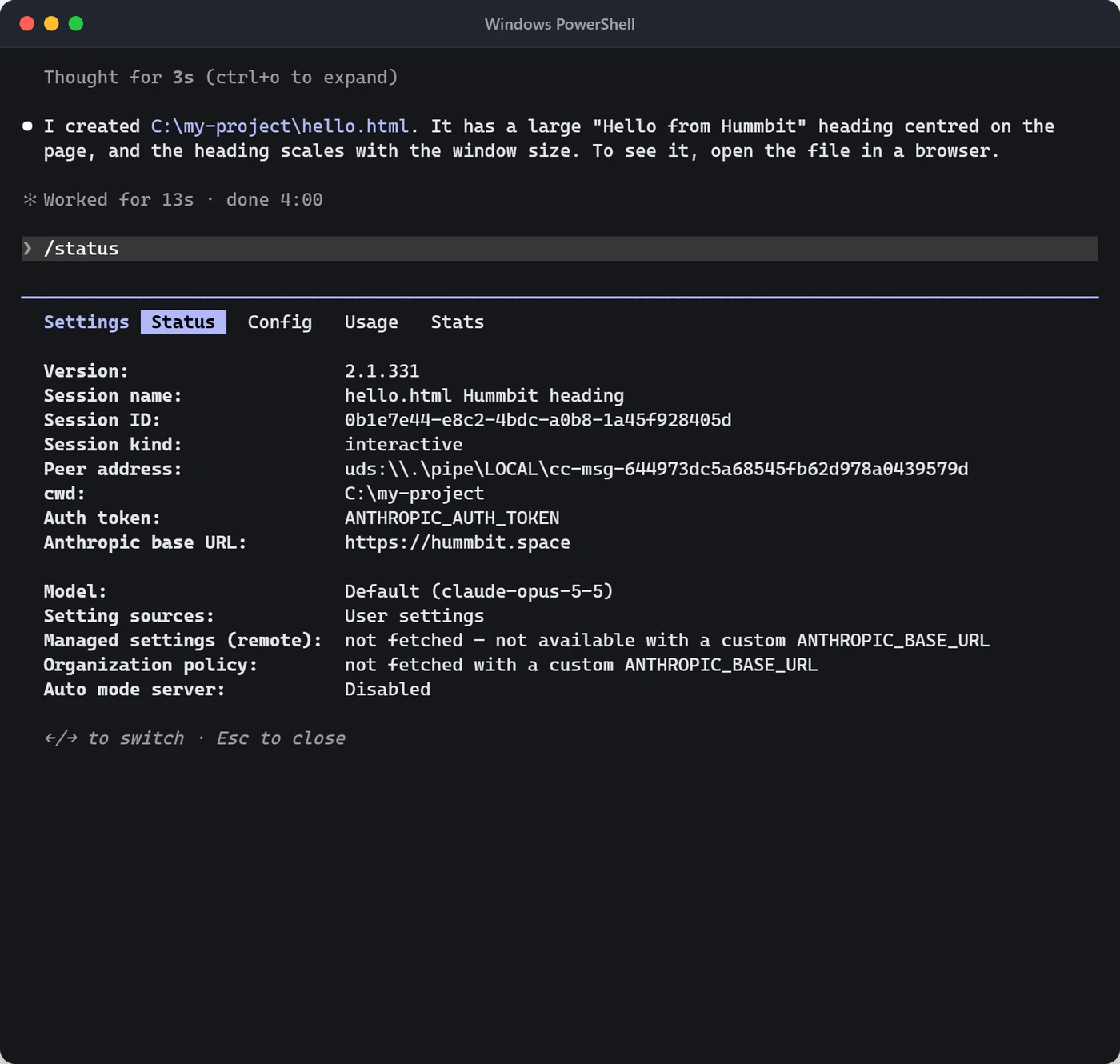
Your first session: how to start
To run Claude Code through Hummbit, you need an address and a key. You get both in your dashboard after you sign up, and the dashboard has a ready setup command. What that command changes is explained in Claude Code base URL and API key setup.
The rest is simple:
- Open a terminal in your project folder, or create an empty folder to experiment.
- Run
claudeand confirm that you trust this folder. - For an existing project, start with
/initso Claude writes a description of it. - Describe your first task in plain words and see what it suggests.
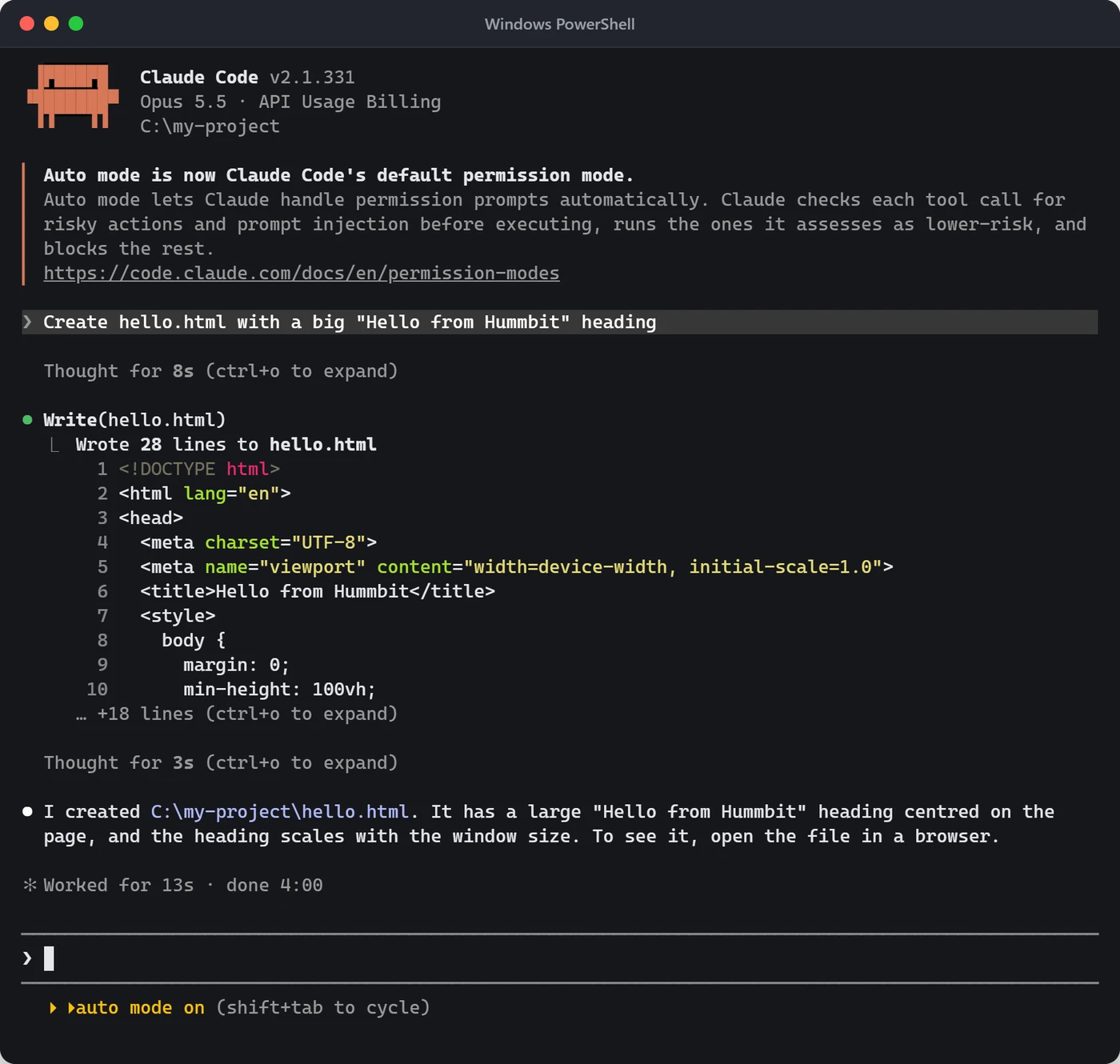
Before changing files or running commands, Claude Code asks for permission. You switch modes with Shift+Tab, from careful, where every action is confirmed, to automatic. The full path from zero to the first answer is in the getting started guide.
FAQ
What is CLAUDE.md?
A text file in the project root with rules for Claude: how to run the tests, which code style you use, what must not be touched. Claude Code reads it at the start of every session, and /init helps you write the first version.
Do I need to know how to code?
Not necessarily. Claude Code explains what it does and understands tasks in plain language. A basic sense of files, folders and the terminal makes things much easier, though.
How is Claude Code different from Cursor?
Cursor is a code editor with a built-in assistant. Claude Code is an agent that runs in the terminal and can live inside any editor, Cursor included.
Does Claude Code work in other languages?
Yes. You can write tasks in Russian, Spanish or any other language, and ask in CLAUDE.md for answers and code comments in that language.
More apps that work with the same key are listed on the setup page.