Claude Code base URL and API key setup
Set a custom Claude Code base URL and API key in settings.json or with environment variables, in the CLI and VS Code, then change the model and test it.
· 5 min read
Claude Code talks to the Claude API over plain HTTPS. By default it uses the address built into the app, but it reads two environment variables that set a custom Claude Code base URL and API key. This is all you need to run Claude Code against Hummbit, and the same approach works for the CLI, the VS Code extension and anything else that starts Claude Code under the hood.
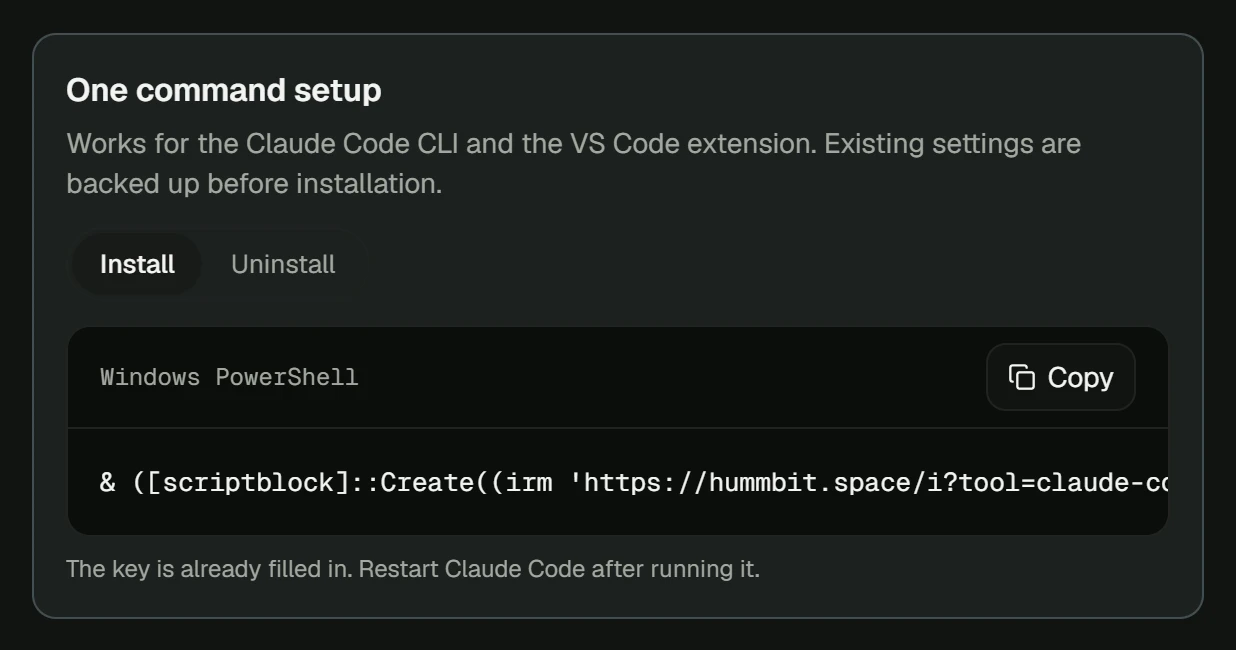
This post walks through the setup, explains what each variable does and shows how to check that the connection really works. If you prefer screenshots, the Claude Code setup page shows the same steps one by one.
What you need
- Claude Code installed (the CLI, the VS Code extension, or both).
- A Base URL and a key. After you create an account, both are in your dashboard. In the examples below they appear as
{BASE}and{KEY}. - About five minutes.
You do not need to sign in to Claude Code with a separate login. When the variables are set, Claude Code skips its own sign-in screen and uses the key you give it.
ANTHROPIC_BASE_URL and the API key
ANTHROPIC_BASE_URL tells Claude Code where to send requests. Use the address exactly as shown in your dashboard, without /v1 at the end: Claude Code adds the path itself.
ANTHROPIC_AUTH_TOKEN carries your key. Claude Code sends it in the Authorization header of every request.
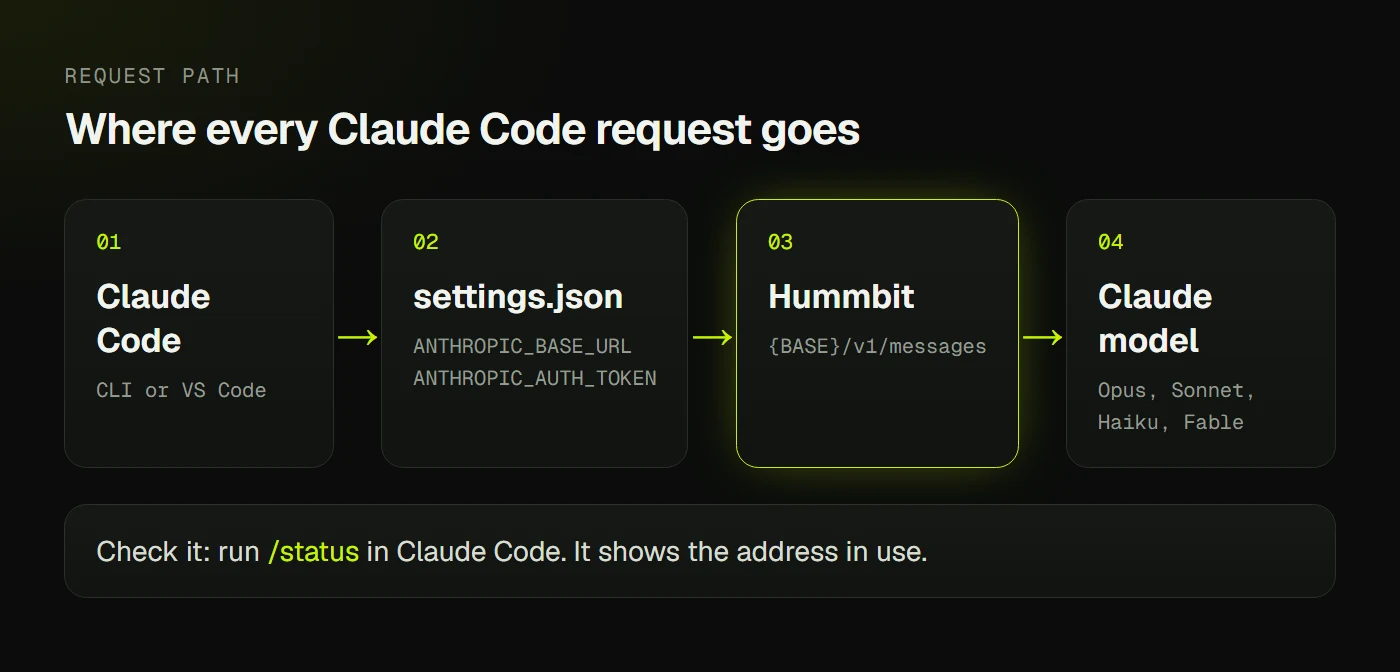
/v1/messages to the Base URL and sends your key with every request.Two more variables make the setup smoother:
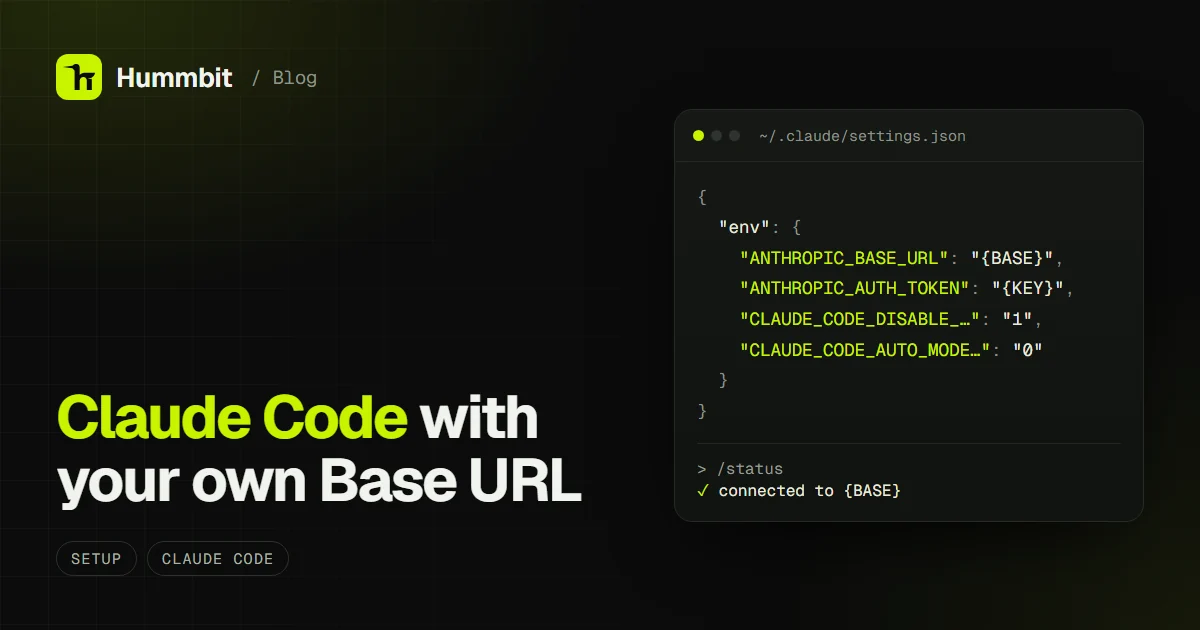
CLAUDE_CODE_DISABLE_NONESSENTIAL_TRAFFIC=1turns off background calls that are not part of your work, such as telemetry, error reports and update checks. Your sessions stay the same; only the extra traffic goes away.CLAUDE_CODE_AUTO_MODE_SERVER=0keeps auto mode working with a custom address. Without it, Claude Code may stop and say that auto mode cannot check actions.
Option 1: settings.json (recommended)
Claude Code reads a settings file in your home folder. Anything in its env block is applied to every session, in every terminal and in the editor. On macOS and Linux the file is ~/.claude/settings.json; on Windows it is C:\Users\YourName\.claude\settings.json.
{
  "env": {
    "ANTHROPIC_BASE_URL": "{BASE}",
    "ANTHROPIC_AUTH_TOKEN": "{KEY}",
    "CLAUDE_CODE_DISABLE_NONESSENTIAL_TRAFFIC": "1",
    "CLAUDE_CODE_AUTO_MODE_SERVER": "0"
  }
}This option is the most reliable because it does not depend on how you start Claude Code. The VS Code extension, a terminal opened from the Start menu and a script started by a scheduler all read the same file.
Option 2: environment variables in the shell
For a quick test, or if you want a different address in one project only, set the variables in the terminal before you start Claude Code:
export ANTHROPIC_BASE_URL="{BASE}"
export ANTHROPIC_AUTH_TOKEN="{KEY}"
export CLAUDE_CODE_DISABLE_NONESSENTIAL_TRAFFIC=1
export CLAUDE_CODE_AUTO_MODE_SERVER=0
claude
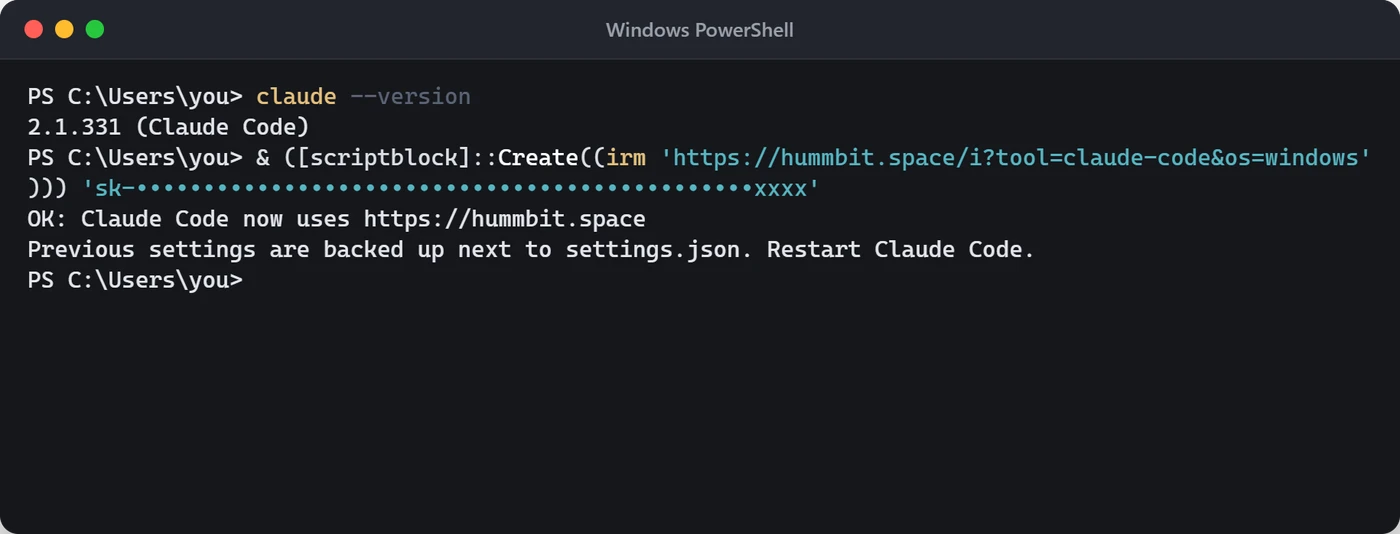
These values last only as long as the terminal window. To keep them, add the lines to your shell profile, or go back to option 1. On Windows, the step-by-step guide has a ready command for PowerShell.
VS Code and other editors
The Claude Code extension for VS Code starts the same program as the CLI, so it uses the same settings file. After you save settings.json, reload the editor window so the extension picks up the change. If you set the variables only in a terminal, the extension will not see them: that is the most common reason why the CLI works and the editor does not.
Check the connection and change the model
Start a new session and send a short message. Then run /status inside Claude Code. It shows the Base URL and the model in use.
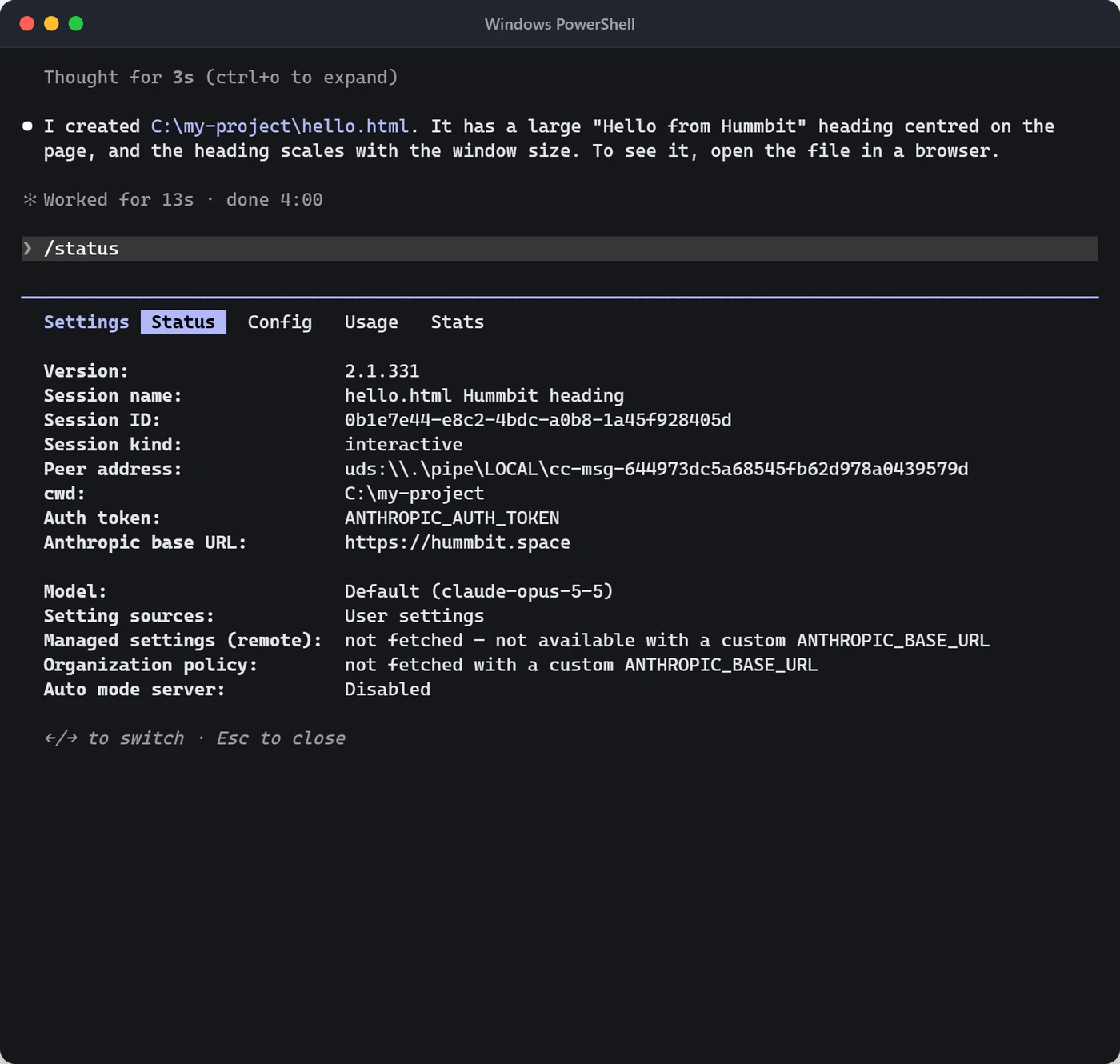
/status shows the Base URL, the key variable and the model of the current session.A few more things worth checking:
- Run
/modeland pick a model. Claude Code lists the Claude models, and your choice applies to the rest of the session. - Open a project and ask Claude Code to read a file. Tool calls, file edits and long answers go through the same address as a simple message.
- Look at the history in your dashboard. Each request appears there with its model and token counts, so you can see what a session actually used.
Common problems
Claude Code still asks you to log in. The variables are not reaching the program. Check the file name and the JSON (a missing comma is enough to break it), then start a new terminal.
The answer is an authentication error. The key is wrong or has extra spaces. Copy it again from the dashboard and paste it between the quotes.
Requests go to the wrong address. Another ANTHROPIC_BASE_URL is set somewhere else, for example in a project's .claude/settings.json or in your shell profile. Project settings win over the home folder, so look there first.
You see a 404 on every request. The address ends with /v1. Remove it: Claude Code adds /v1/messages on its own.
Where to go next
Once Claude Code works, the same key and address fit other tools too. The post on Claude API in Cursor, OpenCode and Kimi Code covers the editors people ask about most, and the full list of setup guides has a page for each app. To make long sessions lighter, read how prompt caching reuses the context Claude Code sends with every turn.