
How to set up Kimi Code App
Kimi Code App is a desktop app. This guide shows how to connect it to Hummbit step by step, with a screenshot of each step (Windows).
You will need the address and your personal key: both are in your Hummbit panel after you sign up.
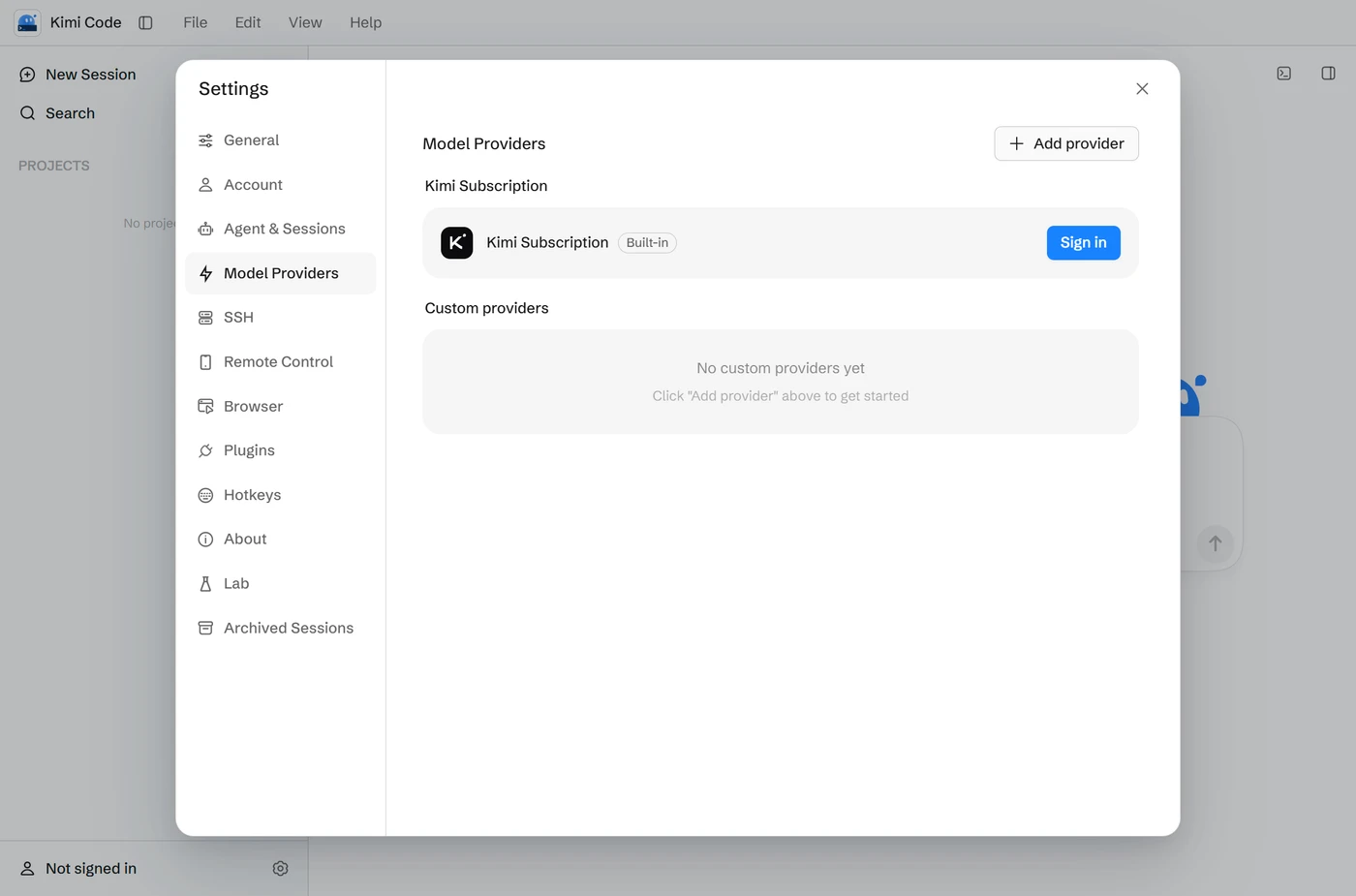
Step 1:Add a provider
Gear (bottom left), Model Providers.
Step 2:Pick Custom
Not a Kimi preset.
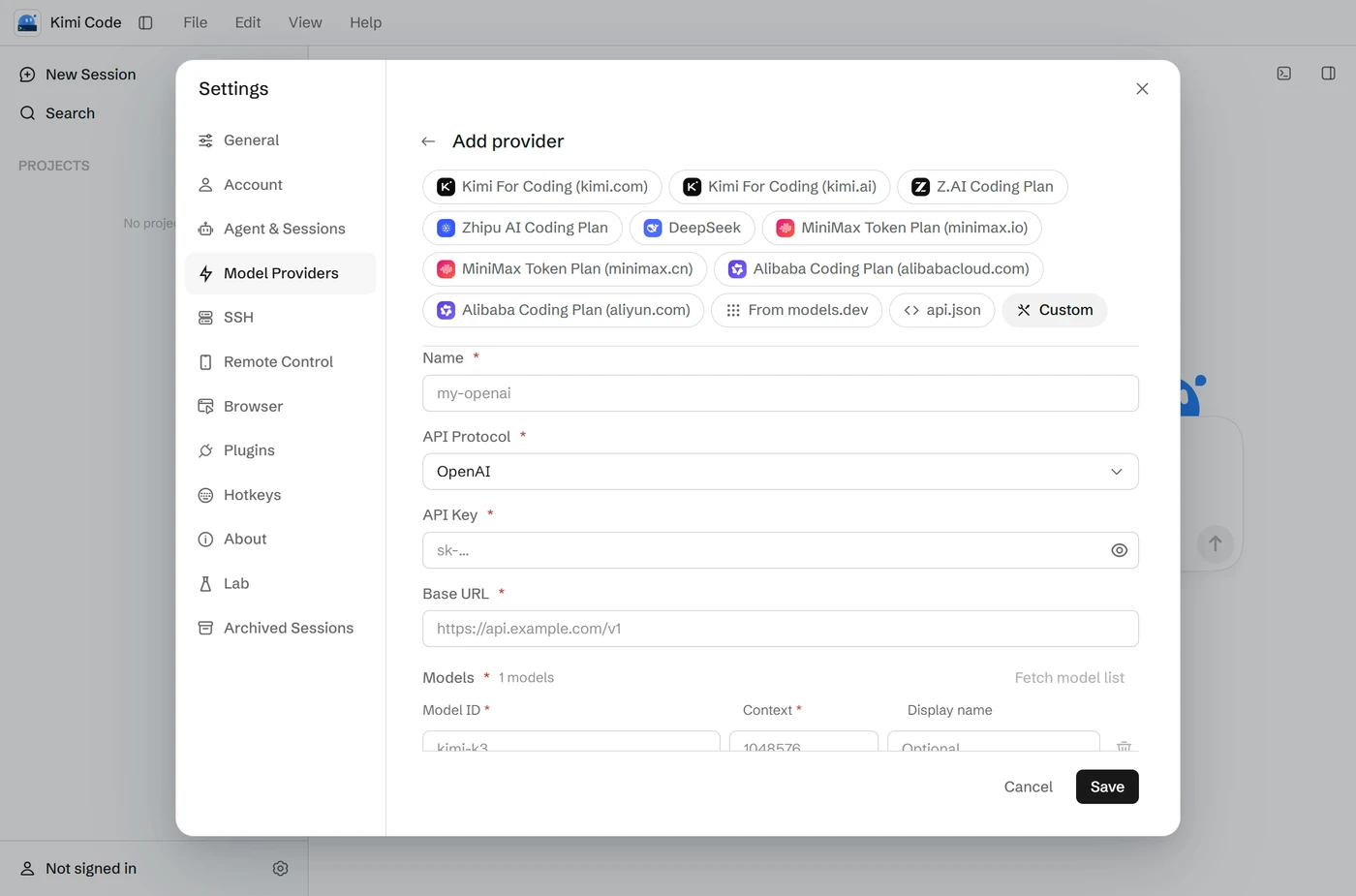
Step 3:Name it
Then API Protocol: Anthropic.
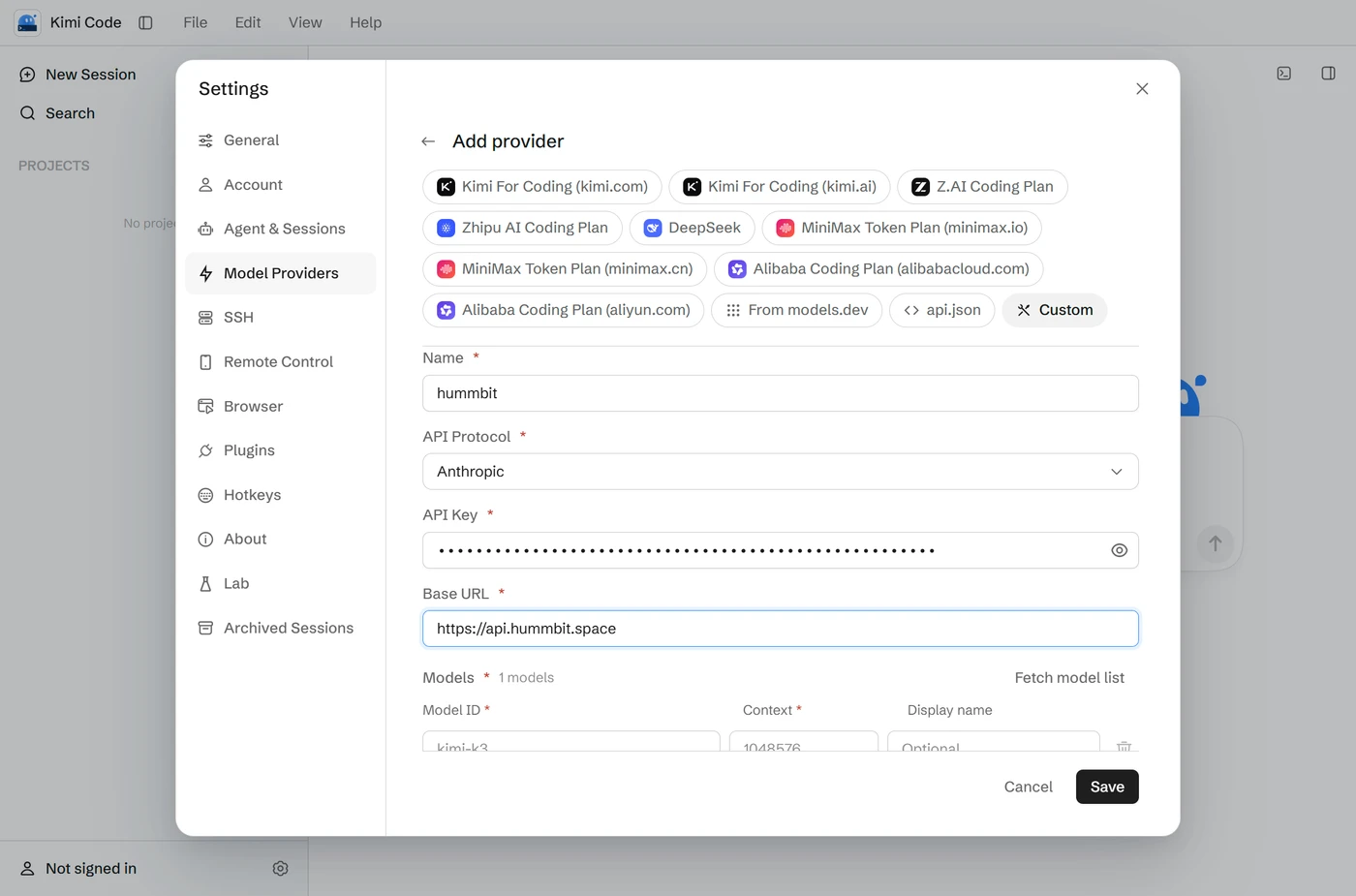
Step 4:Paste your key
In the API Key field.
Step 5:Paste the address
Base URL, without /v1.
Step 6:Add the 4 models
Each: model ID, Context 1000000.
Model names to choose from:claude-sonnet-5-5,claude-opus-5-5,claude-haiku-5-5,claude-fable-5-2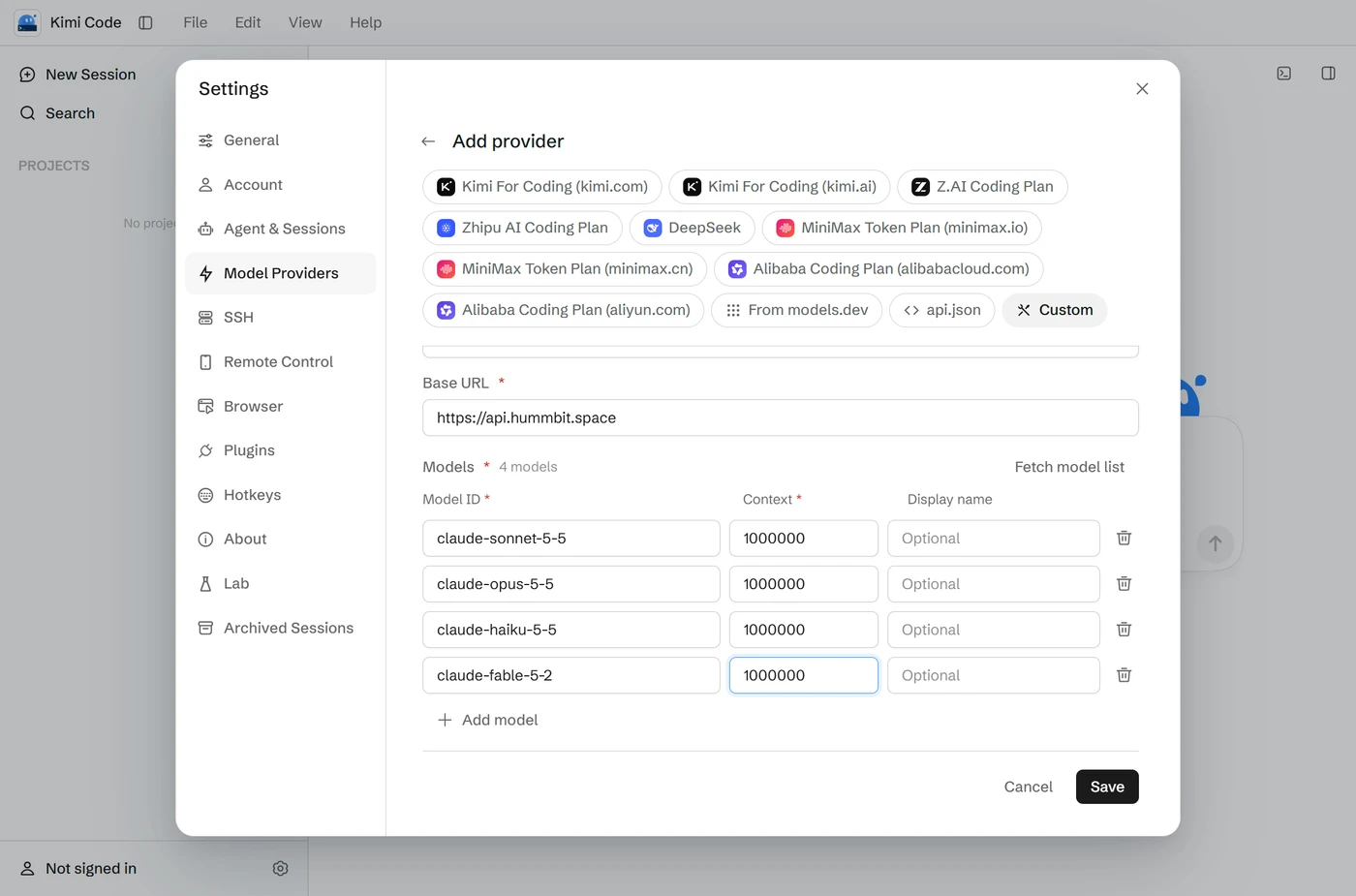
Step 7:Create a project
+ by PROJECTS, pick a folder.
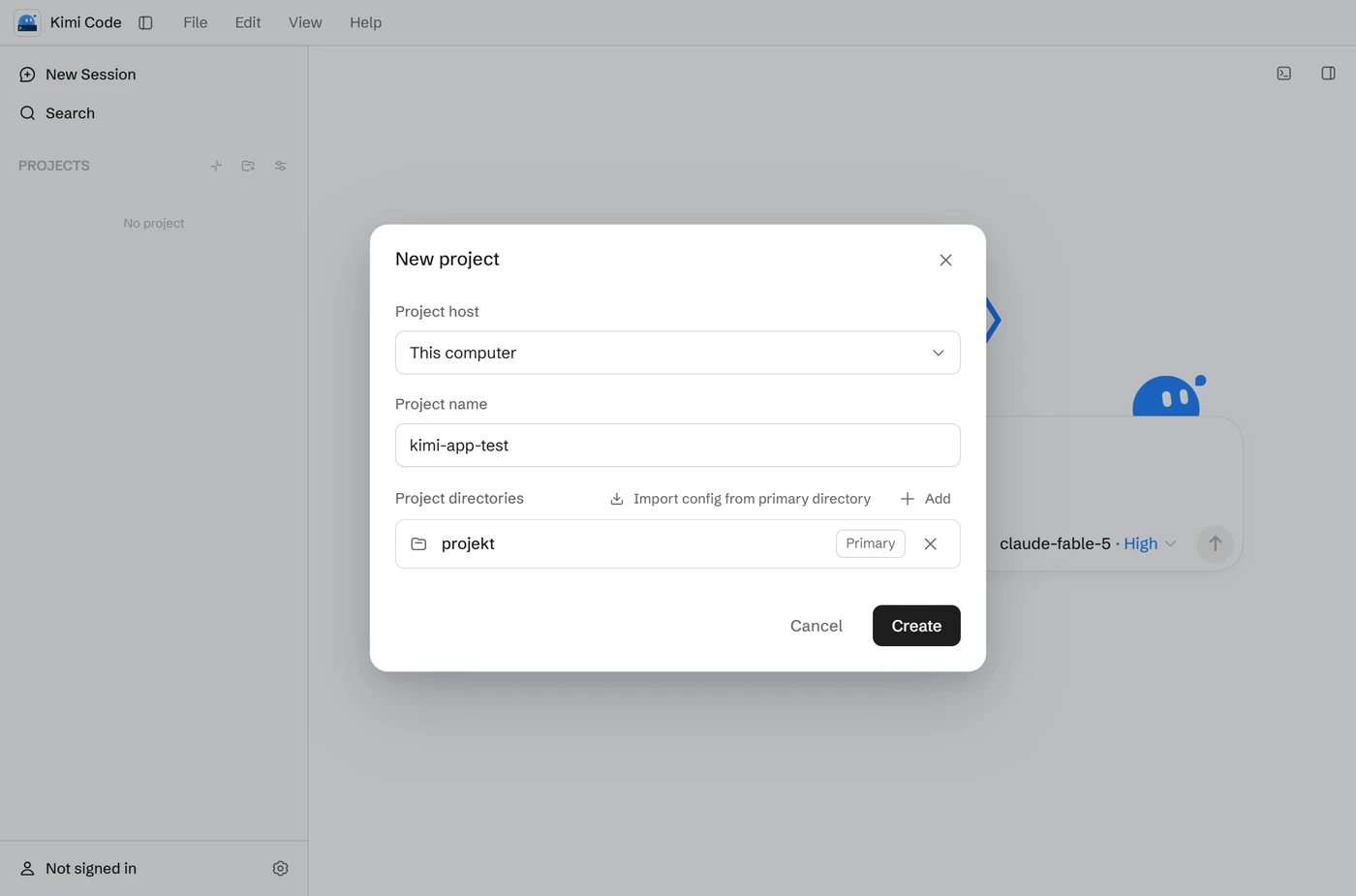
Step 8:Pick the model
Next to the message box.
Model names to choose from:claude-sonnet-5-5,claude-opus-5-5,claude-haiku-5-5,claude-fable-5-2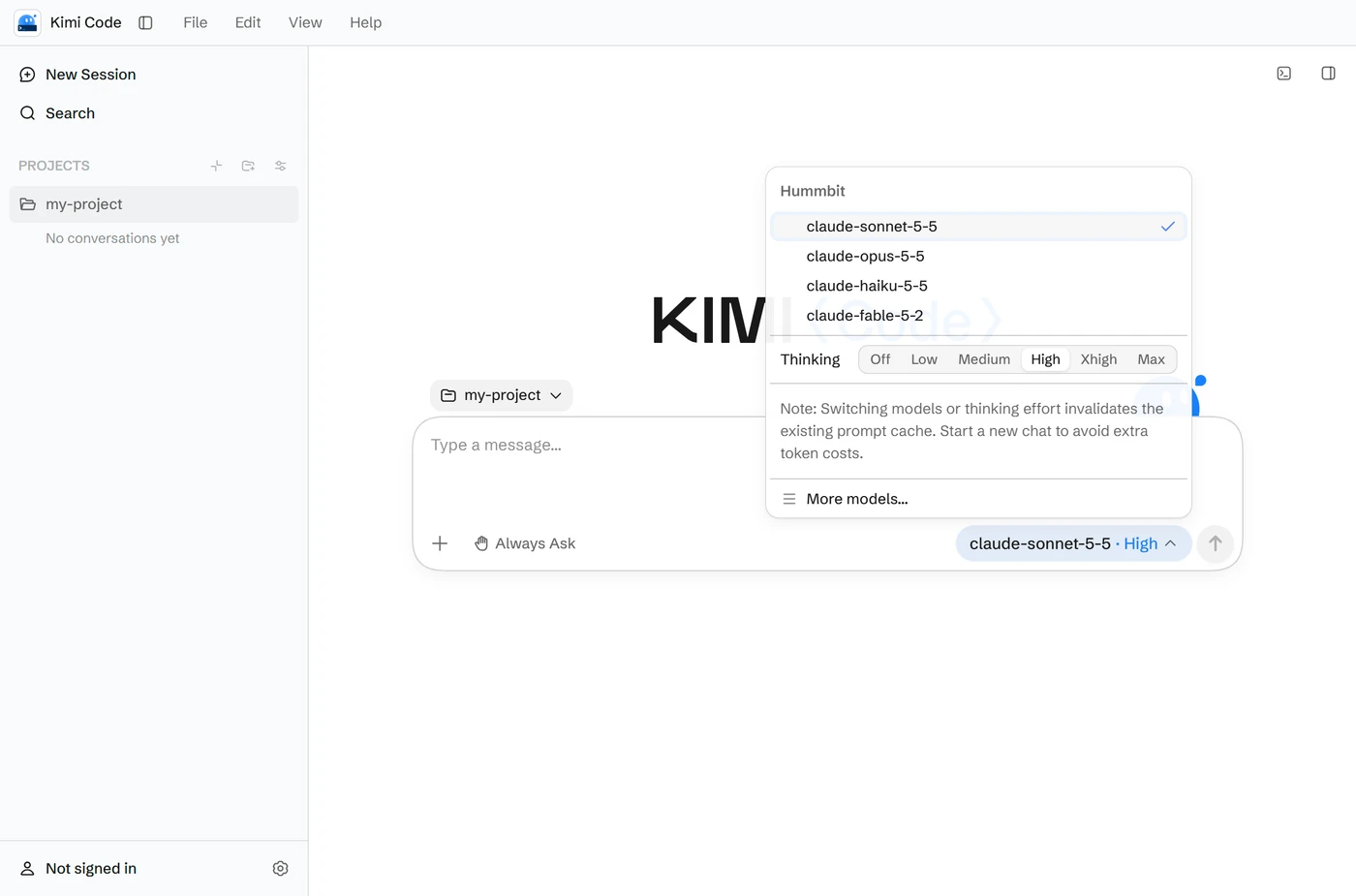
Models
The same models work in every app. Use the exact name:
- Claude Sonnet 5.5:
claude-sonnet-5-5 - Claude Opus 5.5:
claude-opus-5-5 - Claude Haiku 5.5:
claude-haiku-5-5 - Claude Fable 5.2:
claude-fable-5-2
Other apps
- Claude Code24 steps
- Claude Desktop16 steps
- OpenCode20 steps
- Kimi Code CLI6 steps
- Cline7 steps
- Kilo Code8 steps
- Codex CLI6 steps
- Cline CLI7 steps
- GitHub Copilot9 steps
- Continue.dev7 steps
- Aider6 steps
- Codex App4 steps
- Zed6 steps
- JetBrains AI Assistant6 steps
- OpenHands6 steps
- Goose6 steps
- Crush5 steps
- Droid (Factory)4 steps
- OpenClaw4 steps
- Void6 steps
- gptel3 steps
- avante.nvim3 steps
- Pi Agent4 steps
- ZCode9 steps
- Grok Build5 steps
- DeepSeek Harness4 steps
- Hermes5 steps