
How to set up JetBrains AI Assistant
JetBrains AI Assistant is an AI assistant in the code editor. This guide shows how to connect it to Hummbit step by step, with a screenshot of each step (Windows).
You will need the address and your personal key: both are in your Hummbit panel after you sign up.
Step 1:Pick OpenAI-compatible
Then OK in Data Sharing.
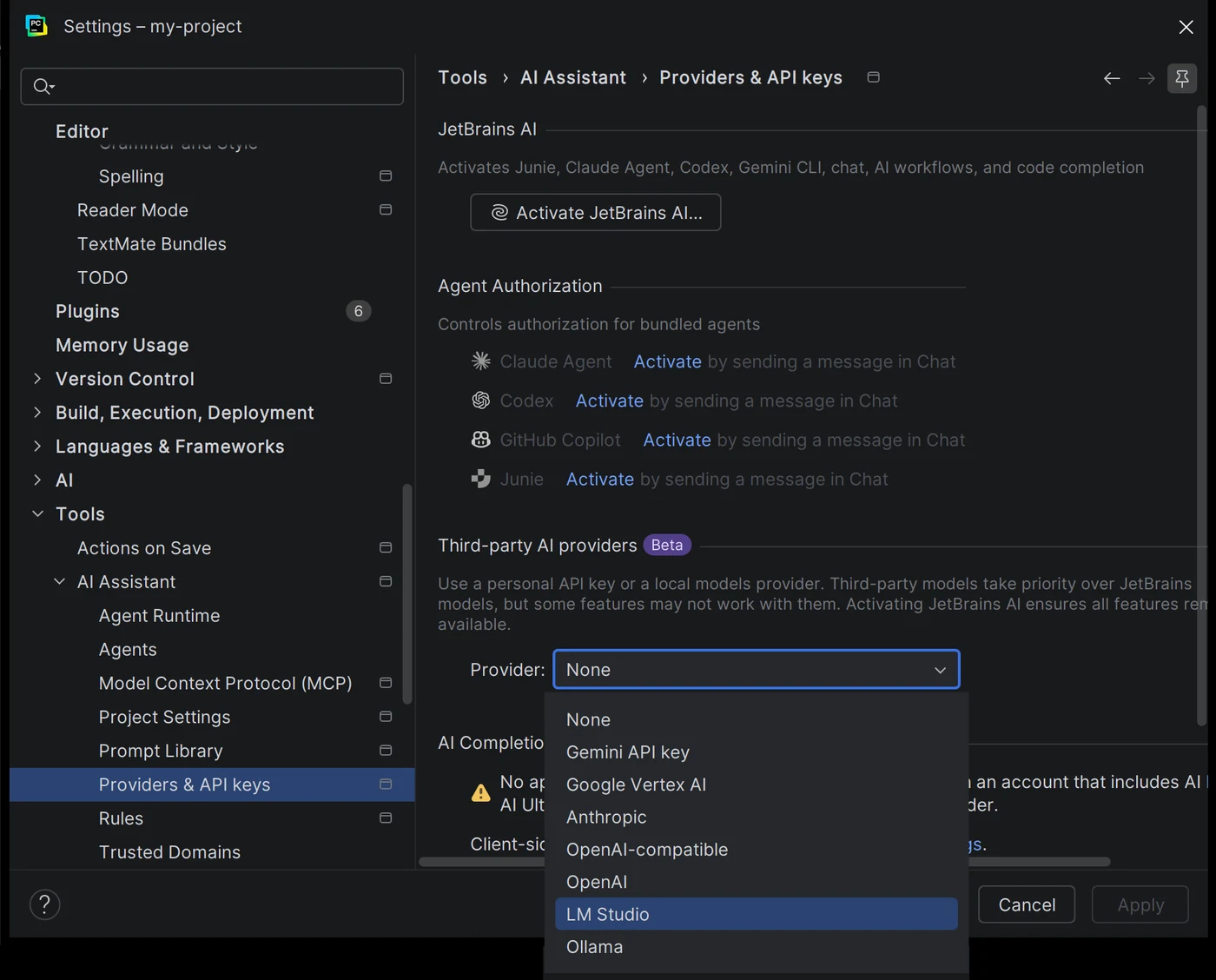
Step 2:Paste the address
It must end with /v1.
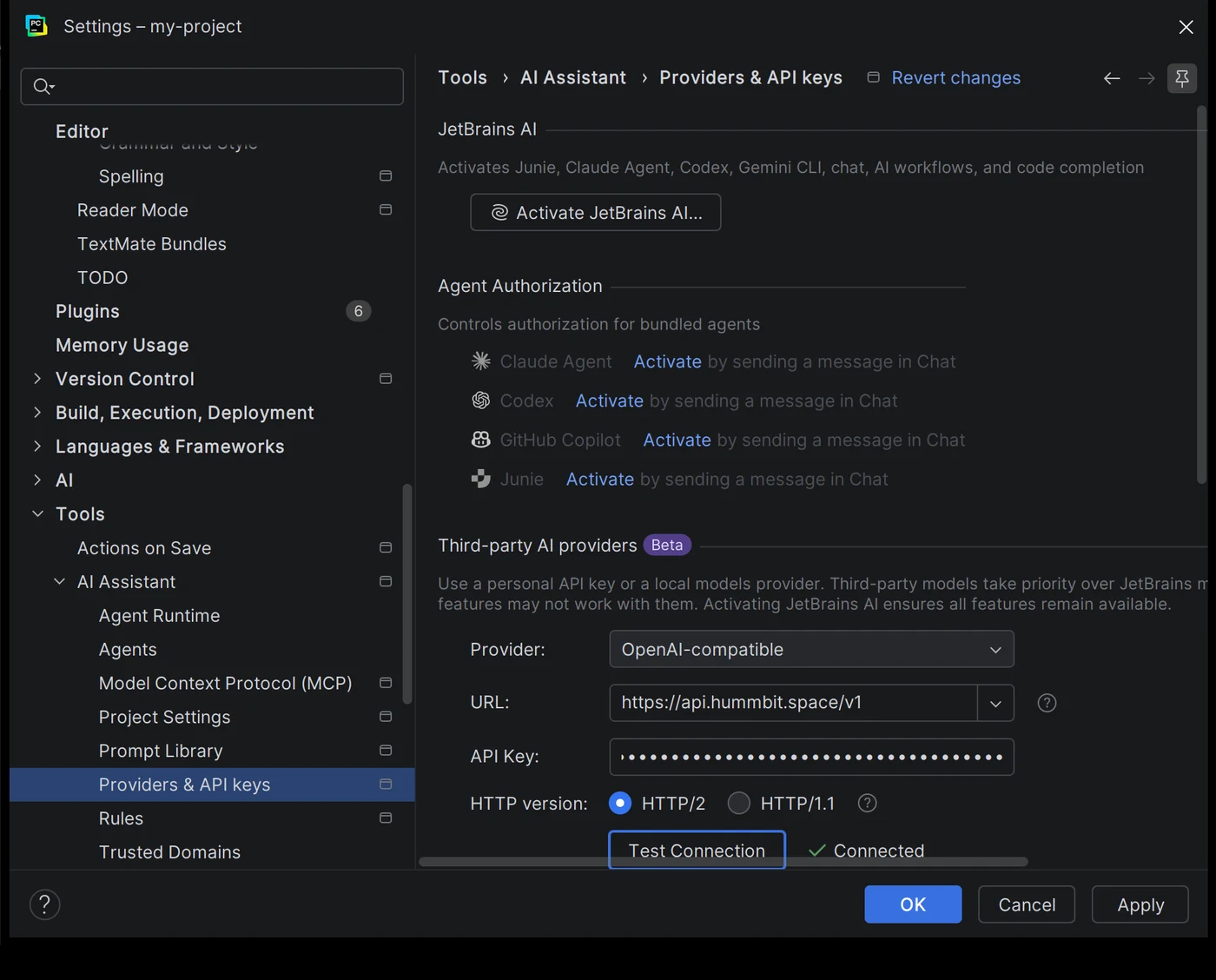
Step 3:Paste your key
Then click Test Connection.
Step 4:Pick a model
Context window 1000000, then OK.
Model names to choose from:claude-sonnet-5-5,claude-opus-5-5,claude-haiku-5-5,claude-fable-5-2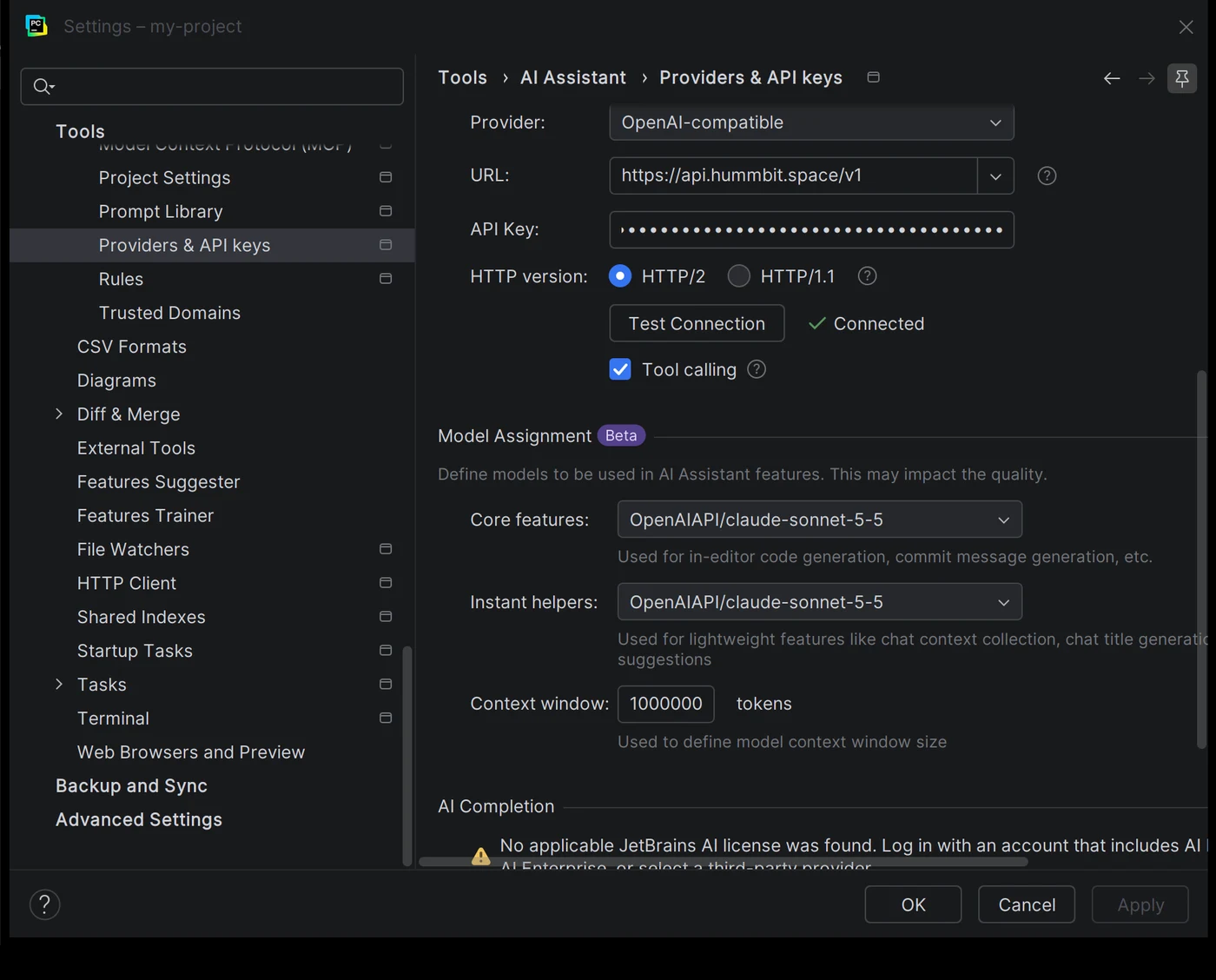
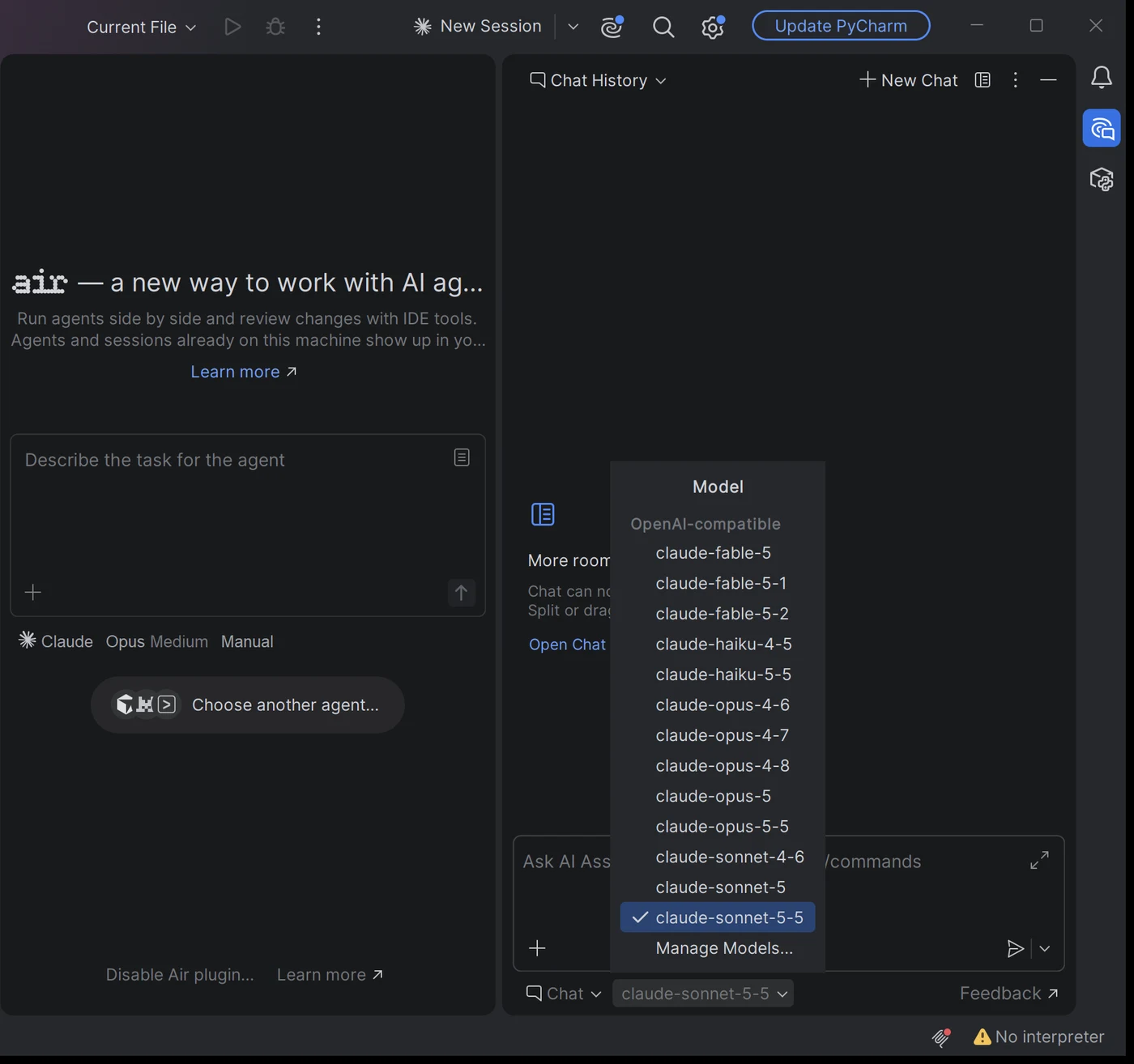
Step 5:Open AI Chat
Sonnet, Opus, Haiku or Fable.
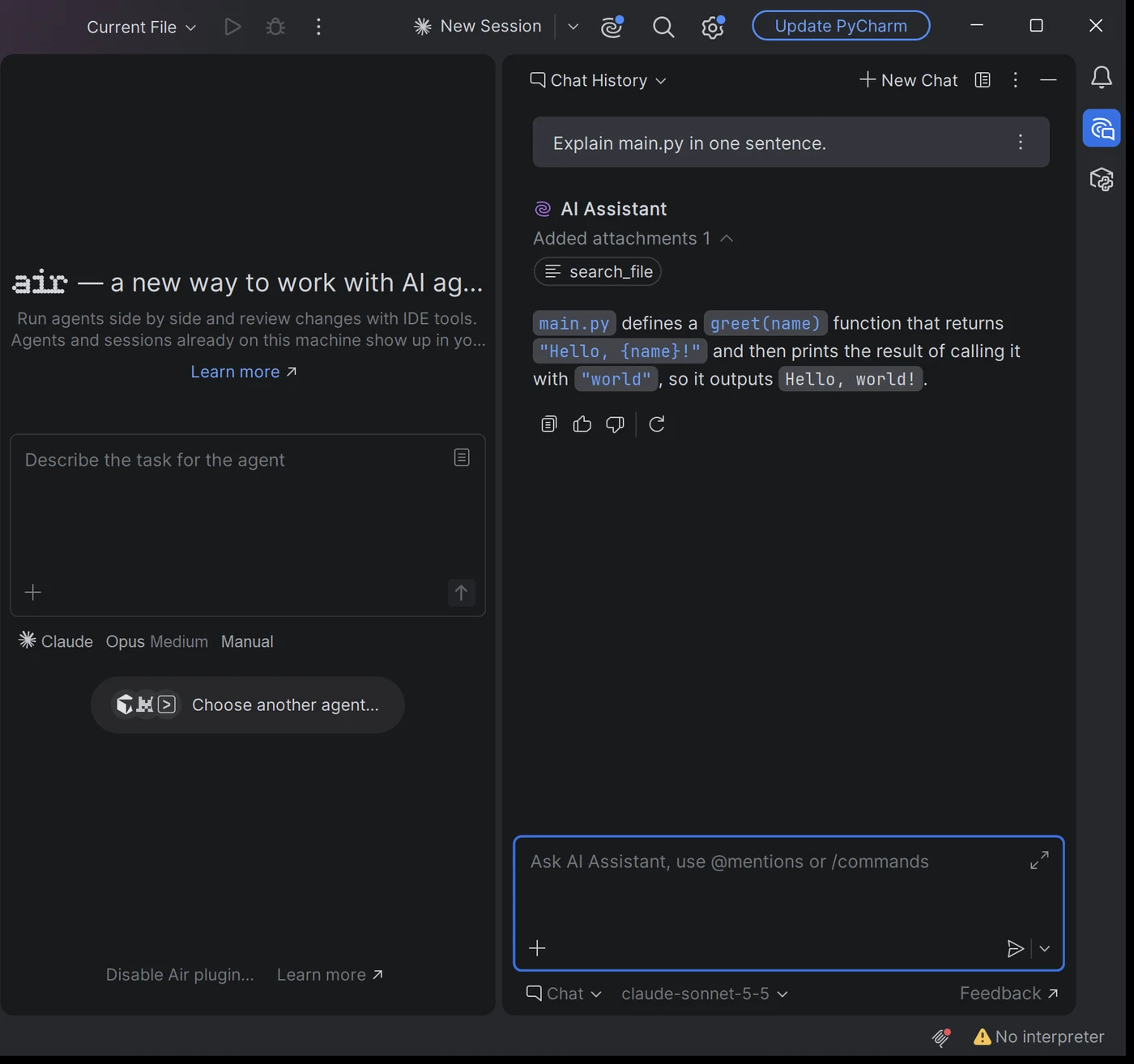
Step 6:Send a message
Claude answers in the chat.
Models
The same models work in every app. Use the exact name:
- Claude Sonnet 5.5:
claude-sonnet-5-5 - Claude Opus 5.5:
claude-opus-5-5 - Claude Haiku 5.5:
claude-haiku-5-5 - Claude Fable 5.2:
claude-fable-5-2
Other apps
- Claude Code24 steps
- Claude Desktop16 steps
- OpenCode20 steps
- Kimi Code CLI6 steps
- Kimi Code App8 steps
- Cline7 steps
- Kilo Code8 steps
- Codex CLI6 steps
- Cline CLI7 steps
- GitHub Copilot9 steps
- Continue.dev7 steps
- Aider6 steps
- Codex App4 steps
- Zed6 steps
- OpenHands6 steps
- Goose6 steps
- Crush5 steps
- Droid (Factory)4 steps
- OpenClaw4 steps
- Void6 steps
- gptel3 steps
- avante.nvim3 steps
- Pi Agent4 steps
- ZCode9 steps
- Grok Build5 steps
- DeepSeek Harness4 steps
- Hermes5 steps